In August, we introduced a new module in Appraise: Individual Development Plans. It gives you everything you need to create, track, and update IDPs for different purposes on a single platform. Now you can generate employee development plans in just one minute with the AI assistant.
When creating an IDP, the algorithm considers:
the employee’s position;
department;
strategic development goal;
selected competency.
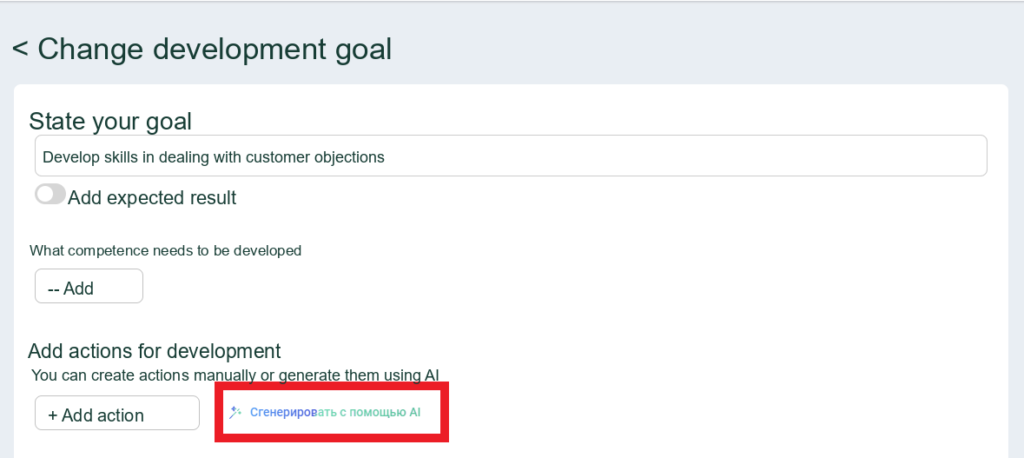
Appraise's AI assistant helps generate IDPs
Once you click the button, the assistant generates a development action plan.
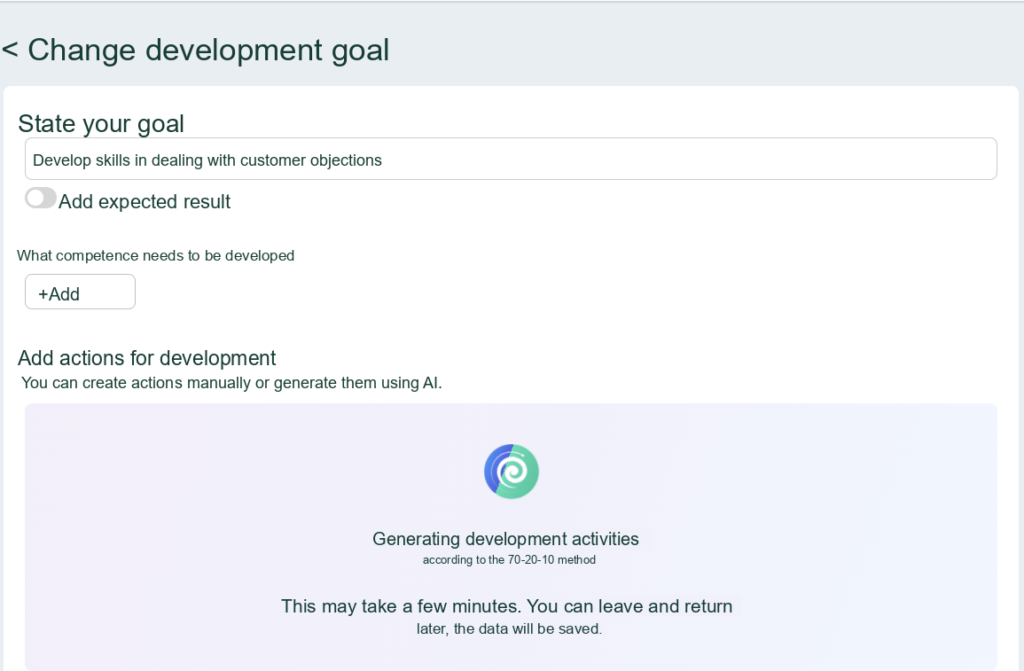
Generating a development plan aligned with the goal
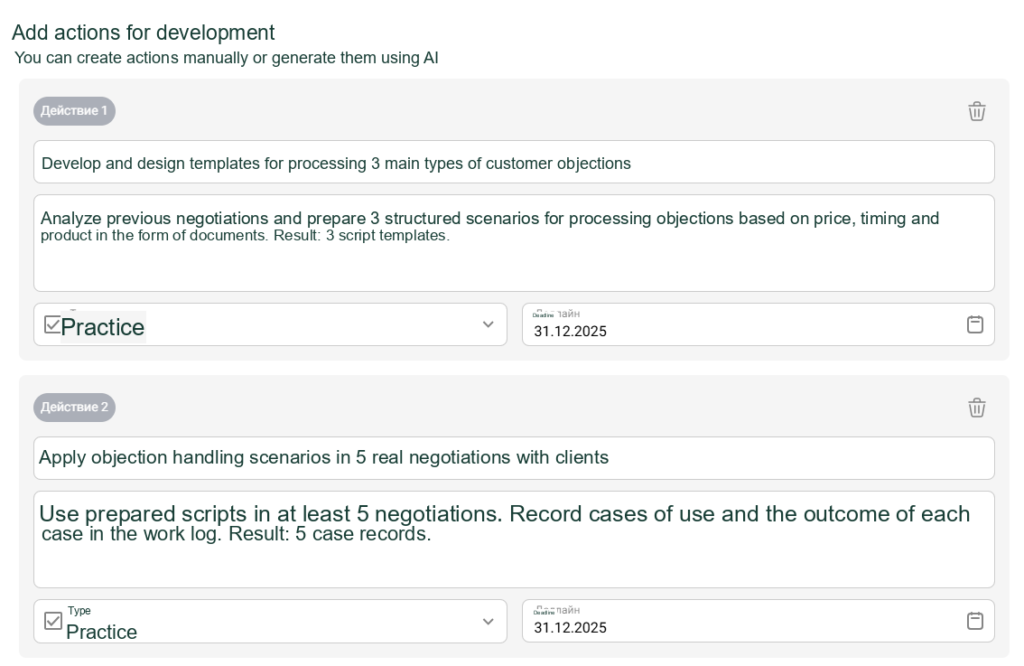
The IDP follows the 70-20-10 methodology: 70% — practice, 20% — interaction with teams and partners, and 10% — learning materials.
List of development activities based on the 70-20-10 model: 70% — practice
To learn more about the 70-20-10 model, read this article.
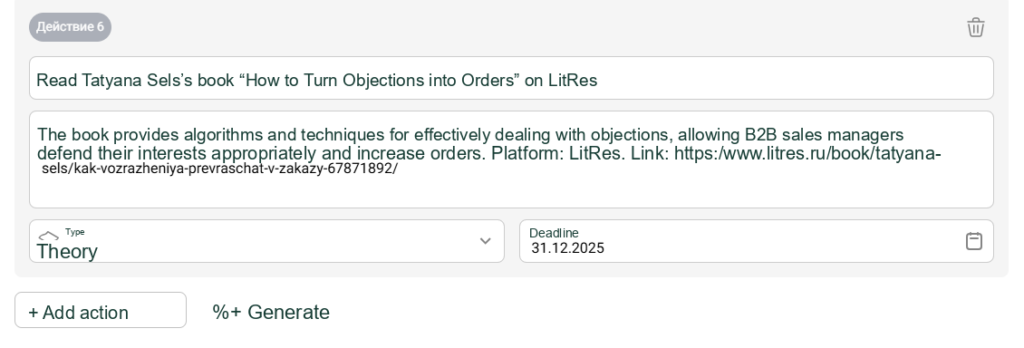
Books and courses are added with direct links.
Materials include links to their sources
You can edit or delete the suggested tasks and generate new suggestions as needed.
Selecting an IDP supervisor
Previously, an employee’s manager was automatically assigned as their IDP supervisor in Appraise. Now any employee can be selected, such as a mentor or HR specialist.
This enables the supervisor to:
receive notifications about the development plan and mark it as complete;
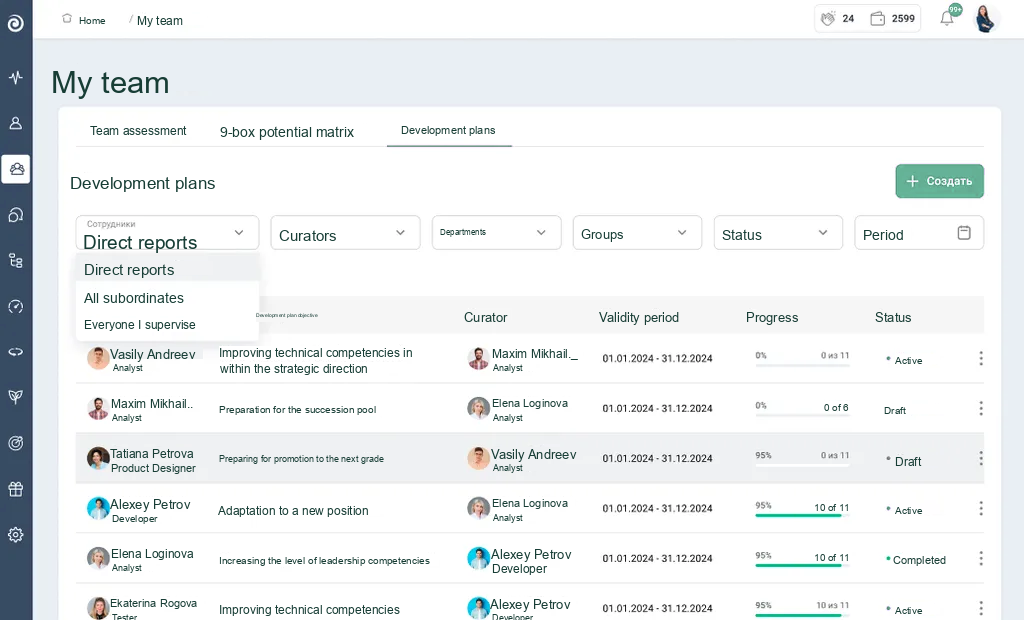
track IDP progress for employees they supervise in the “My Team” dashboard.
The supervisor can track IDP progress in the dashboard
Recurring assessment reminders
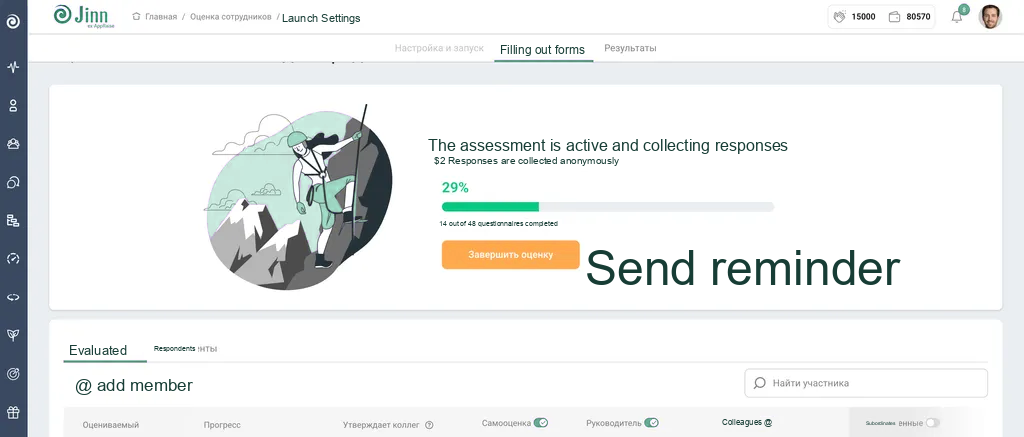
Employees sometimes delay assessment-related tasks. For example, they may not complete questionnaires or may forget to approve respondents for their direct reports. To move the process along, the administrator previously had to create and send reminders manually. Appraise now makes it possible to automate this.
Reminders can now be sent automatically
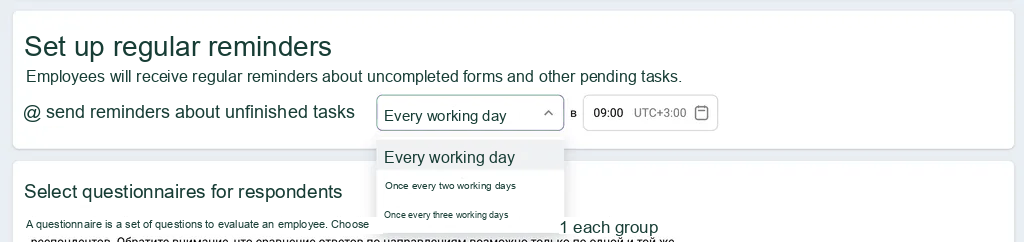
How to enable and configure recurring notifications
To enable the option, go to the assessment settings, select the “Send reminders about incomplete tasks” checkbox, and choose the frequency and time.
Enabling reminders
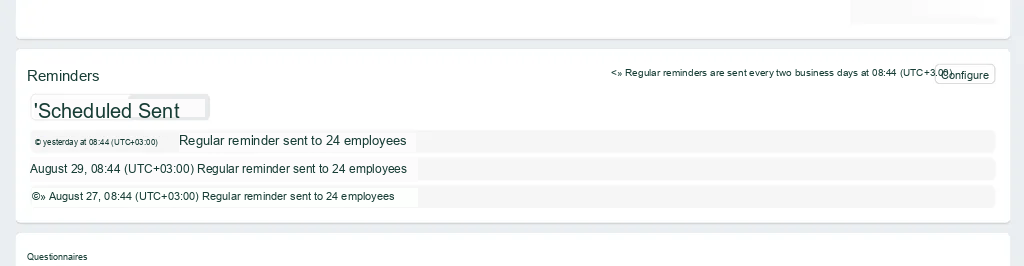
The “Reminders” section is also available in an assessment that is already underway. It displays all scheduled and sent emails. To change the settings, click the “Configure” button in the upper-right corner and select a new frequency and time.
Configuring reminders in an active assessment
Manual notifications also remain available. If necessary, the administrator can create and send a reminder at any time.
Experience all the benefits of the Appraise updates